

Livebook is a web application for writing interactive and collaborative code notebooks for Elixir, built with Phoenix LiveView. It features:
Code notebooks with Markdown support and Elixir cells where code is evaluated on demand.
Shareable: notebooks are stored in the
.livemdformat, which is a subset of Markdown with support for diagrams via Mermaid and for mathematical formulas via KaTex..livemdfiles can be easily shared and play well with version control.Interactive widgets via Kino: manipulate Vega-Lite charts, tables, and more.
Rich code editor through Monaco: with support for autocompletion, inline documentation, code formatting, etc.
Reproducible: Livebook ensures your code runs in a predictable order, all the way down to package management. It also tracks your notebook state, annotating which parts are stale.
Persistence: persist your notebooks to disk or any S3-compatible cloud storage.
Collaboration: multiple users can work on the same notebook at once. It works out-of-the-box either in single-node or multi-node deployments - without a need for additional tooling.
Decentralized: Livebook is open-source and you can run it anywhere. The “Run in Livebook” badges makes it easy to import any Livebook into your preferred Livebook instance.
Custom runtimes: when executing Elixir code, you can either start a fresh Elixir instance, connect to an existing node, or run it inside an existing Elixir project, with access to all of its modules and dependencies. This means Livebook can be a great tool to introspect and document existing projects too.
We are actively working on Livebook and you can consult the issues tracker to see some of the features we are exploring. We also want to thank Jupyter and Deepnote for inspiring some of our features.
Getting started
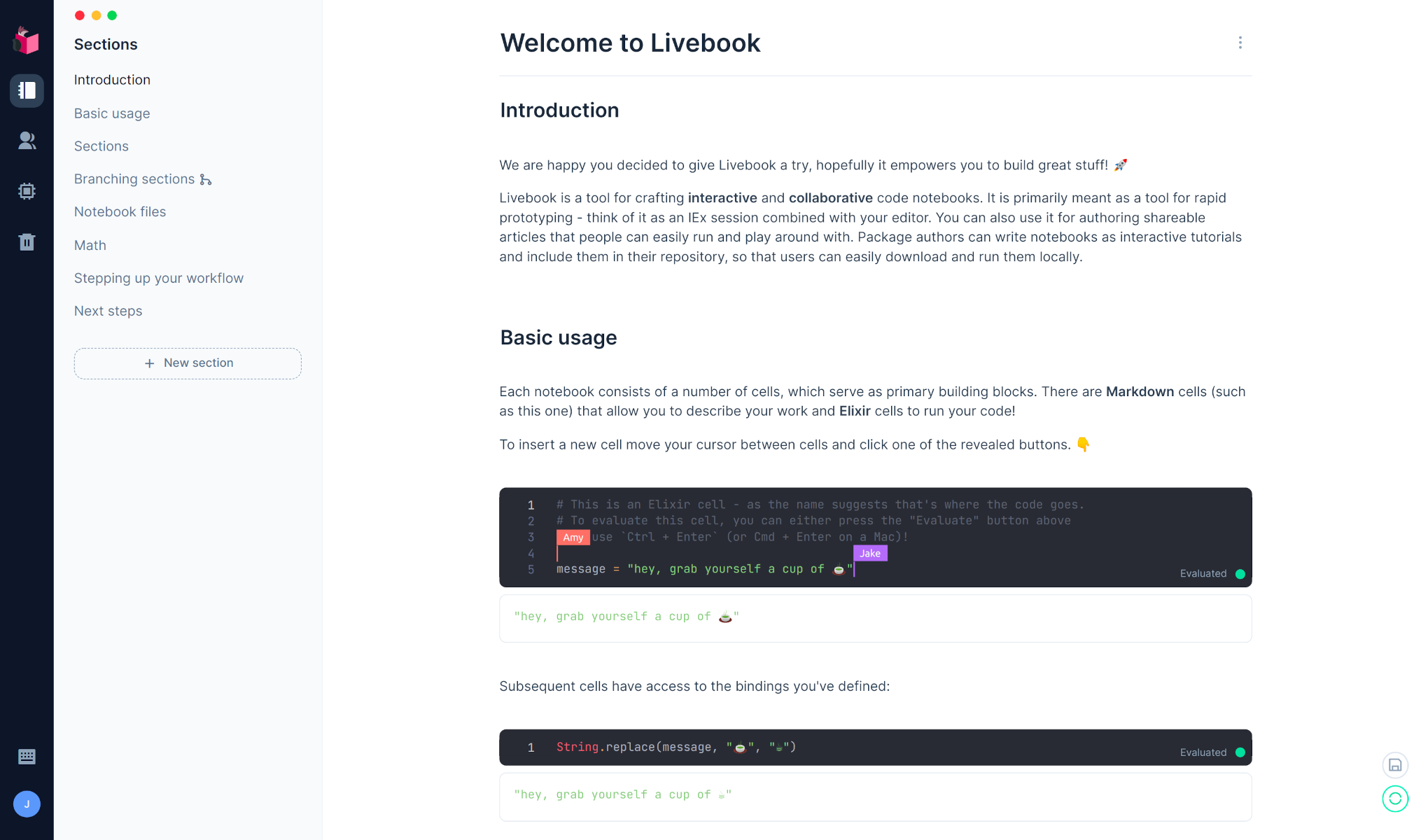
Livebook comes with a series of introductory notebooks to get you up and running. Just head down to the “Usage” section below to install it. Here is a peek at the “Welcome to Livebook” introductory notebook:
From time to time, we also publish some videos for new Livebook releases:
Livebook’s initial announcement by José Valim, also featuring Nx and Axon
New in Livebook v0.2 by José Valim, exploring inputs, charts of mathematical formulas, and live display of runtime metrics
Usage
We provide several distinct methods of running Livebook, pick the one that best fits your use case.
Running on the cloud
Running locally
You can run Livebook on your own machine. You will need
Elixir v1.13 or later.
Livebook also requires the following Erlang applications: inets,
os_mon, runtime_tools, ssl and xmerl. Those applications come
with most Erlang distributions but certain package managers may split
them apart. For example, on Ubuntu, these Erlang applications could
be installed as follows:
sudo apt install erlang-inets erlang-os-mon erlang-runtime-tools erlang-ssl erlang-xmerl erlang-dev erlang-parsetoolsEscript
Running Livebook using Escript makes for a very convenient option for local usage and provides easy configuration via CLI options.
mix escript.install hex livebook

# Start the Livebook server
livebook server

# See all the configuration options
livebook server --help
After you install the escript, make sure you add the directory where
Elixir keeps escripts to your $PATH.
If you installed Elixir with asdf, you’ll need to run asdf reshim elixir
once the escript is built.
To try out features from the main branch you can alternatively install the escript directly from GitHub like this:
mix escript.install github livebook-dev/livebookDocker
Running Livebook using Docker is a great option for cloud deployments and also for local usage in case you don’t have Elixir installed.
# Running with the default configuration
docker run -p 8080:8080 --pull always livebook/livebook

# In order to access and save notebooks directly to your machine
# you can mount a local directory into the container.
# Make sure to specify the user with "-u $(id -u):$(id -g)"
# so that the created files have proper permissions
docker run -p 8080:8080 --pull always -u $(id -u):$(id -g) -v $(pwd):/data livebook/livebook

# You can configure Livebook using environment variables,
# for all options see the dedicated "Environment variables" section below
docker run -p 8080:8080 --pull always -e LIVEBOOK_PASSWORD="securesecret" livebook/livebook
To try out features from the main branch you can alternatively
use the livebook/livebook:edge image.
See Livebook on Docker Hub.
Mix
You can run latest Livebook directly with Mix.
git clone https://github.com/livebook-dev/livebook.git
cd livebook
mix deps.get --only prod

# Run the Livebook server
MIX_ENV=prod mix phx.server
Embedded devices
If you want to run Livebook on embedded devices, such as Raspberry Pi, BeagleBone, etc., check out our Livebook firmware built with Nerves.
Security considerations
Livebook is built to document and execute code. Anyone with access to a Livebook instance will be able to access any file and execute any code in the machine Livebook is running.
For this reason, Livebook only binds to the 127.0.0.1, allowing access to happen only within the current machine. When running Livebook in the production environment - the recommended environment - we also generate a token on initialization and we only allow access to the Livebook if said token is supplied as part of the URL.
Environment variables
The following environment variables configure Livebook:
LIVEBOOK_AUTOSAVE_PATH - sets the directory where notebooks with no file are saved. Defaults to livebook/notebooks/ under the default user cache location. You can pass “none” to disable this behaviour.
LIVEBOOK_COOKIE - sets the cookie for running Livebook in a cluster. Defaults to a random string that is generated on boot.
LIVEBOOK_DEFAULT_RUNTIME - sets the runtime type that is used by default when none is started explicitly for the given notebook. Must be either “standalone” (Elixir standalone), “mix[:PATH]” (Mix standalone), “attached:NODE:COOKIE” (Attached node) or “embedded” (Embedded). Defaults to “standalone”.
LIVEBOOK_FILE_SYSTEM_1, LIVEBOOK_FILE_SYSTEM_2, … - configures additional file systems. Each variable should hold a configuration string, which must be of the form: “s3 BUCKET_URL ACCESS_KEY_ID SECRET_ACCESS_KEY”.
LIVEBOOK_IP - sets the ip address to start the web application on. Must be a valid IPv4 or IPv6 address.
LIVEBOOK_PASSWORD - sets a password that must be used to access Livebook. Must be at least 12 characters. Defaults to token authentication.
LIVEBOOK_PORT - sets the port Livebook runs on. If you want to run multiple instances on the same domain with the same credentials but on different ports, you also need to set LIVEBOOK_SECRET_KEY_BASE. Defaults to 8080.
LIVEBOOK_ROOT_PATH - sets the root path to use for file selection. This does not restrict access to upper directories unless the operating system user is also restricted.
LIVEBOOK_SECRET_KEY_BASE - sets a secret key that is used to sign and encrypt the session and other payloads used by Livebook. Must be at least 64 characters long and it can be generated by commands such as: ‘openssl rand -base64 48’. Defaults to a random secret on every boot.
LIVEBOOK_TOKEN_ENABLED - controls whether token authentication is enabled. Enabled by default unless
LIVEBOOK_PASSWORDis set. Set it to “false” to disable it.
If running Livebook as a Docker image or an Elixir release, the environment
variables used by Elixir releases are also available.
The notables ones are RELEASE_NODE and RELEASE_DISTRIBUTION.
Rendering notebooks as Markdown on GitHub
By default GitHub renders the .livemd notebooks as regular text files. Depending
on your use case and the target audience, you may find it useful to render notebooks
content as Markdown files instead. There is an option to override how a particular
file gets rendered on GitHub, so all you need to do is add a magic comment in every
such notebook:
<!-- vim: set syntax=markdown: -->


# My notebook

...
For more details see the documentation.
Development
Livebook is primarily a Phoenix web application and can be setup as such:
git clone https://github.com/livebook-dev/livebook.git
cd livebook
mix dev.setup

# Run the Livebook server
mix phx.server

# To test escript
MIX_ENV=prod mix escript.build
./livebook server
Sponsors
Livebook development is sponsored by:
<img src=”https://fly.io/public/images/brand/logo.svg” width=”320” />License
Copyright (C) 2021 Dashbit
Licensed under the Apache License, Version 2.0 (the “License”); you may not use this file except in compliance with the License. You may obtain a copy of the License at http://www.apache.org/licenses/LICENSE-2.0
Unless required by applicable law or agreed to in writing, software distributed under the License is distributed on an “AS IS” BASIS, WITHOUT WARRANTIES OR CONDITIONS OF ANY KIND, either express or implied. See the License for the specific language governing permissions and limitations under the License.